


Chinese uses thousands of characters in daily life, but typing Chinese is much easier than many beginners expect. Most people do not use a special keyboard. Instead, they type pronunciation with pinyin or write characters by hand, and their phone or computer suggests the right character.
In the phrase 汉语 (hànyǔ), the letters with tone marks are called pinyin. Pinyin is a system for writing Mandarin sounds with the Roman alphabet, and it powers the most common Chinese input methods used today. If you are still getting comfortable with pinyin, spending a little time with a pinyin chart can make Chinese input feel much more intuitive.

01 How Do People Type in Chinese?
Although Chinese characters look very different from alphabetic writing systems, typing them is surprisingly straightforward. The most common method is pinyin input. Users type the pronunciation of a character or word with a standard 26-letter keyboard, and the device shows a list of matching characters to choose from.
For example, if you type yang, your device may display many possible characters, since multiple Chinese characters share that same pronunciation. In practice, this is rarely as difficult as it sounds. Because modern keyboards use context and prediction, the intended character or word often appears near the top of the list.
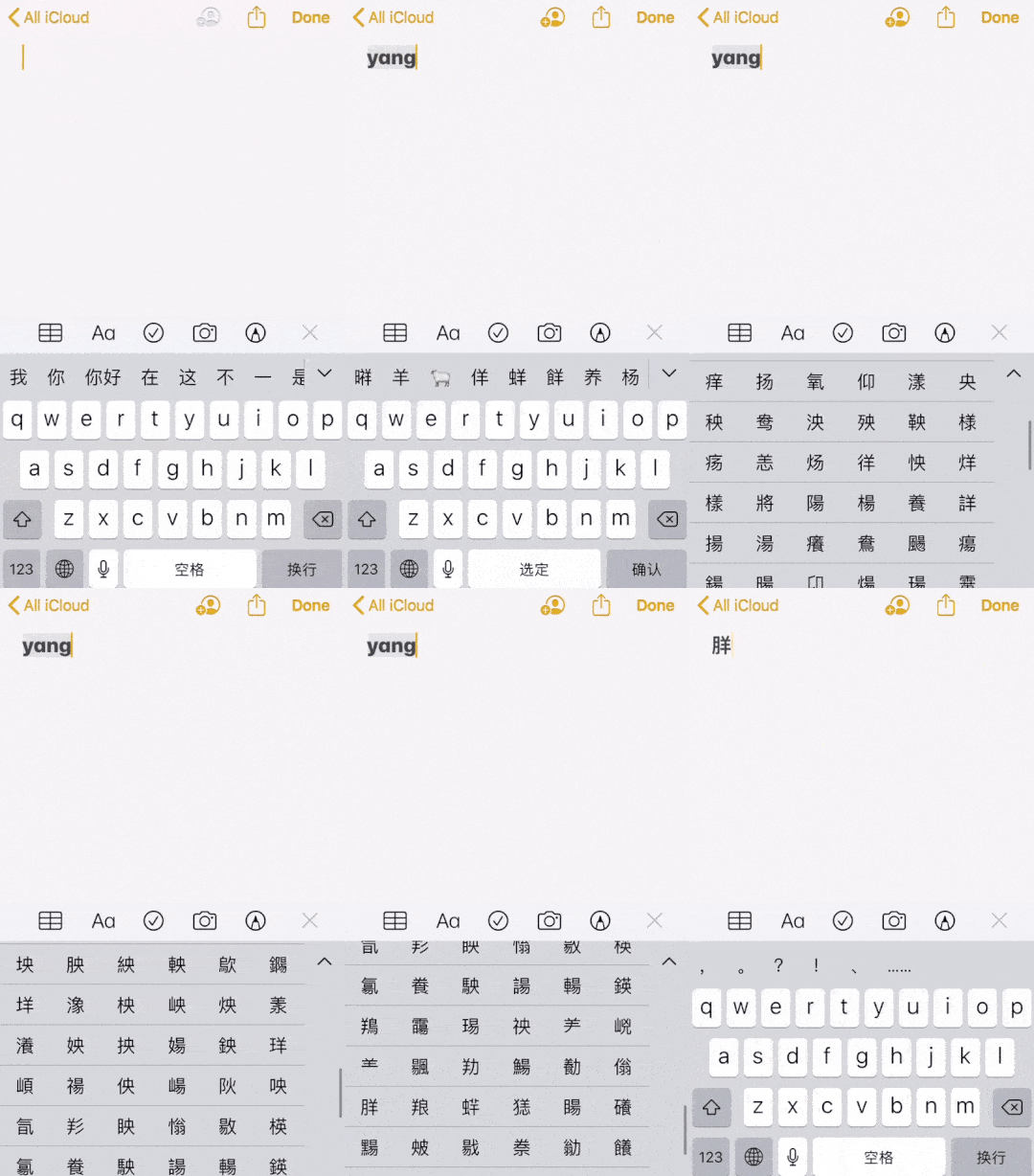
Beyond Single Characters: Faster and Smarter Input Methods
Many Chinese keyboards also let you type full words or short phrases instead of selecting one character at a time. This makes typing faster and helps the keyboard narrow down the right result. The more often you type in Chinese, the more natural this process becomes.
Handwriting input is another useful option. If you can recognize a character but do not know its pronunciation, you can often draw it with your finger, stylus, mouse, or trackpad and let your device identify it. This can also reinforce Chinese stroke order and support students who are working to learn Chinese characters more actively.
Some users also rely on shape-based systems or stroke input, but most learners should start with pinyin. It is widely available, easy to begin using, and closely connected to pronunciation. Whether you are texting friends, looking up a new word, or reviewing the most common Chinese characters, pinyin input is usually the most practical first step.
02 Which Chinese Input Method Should You Use?
Pinyin Input
For most learners, pinyin input is the best place to start. It works on nearly all modern phones and computers, and it reinforces pronunciation each time you type. If you already know basic pinyin, you have what you need to begin.
Handwriting Input
Handwriting input is a strong backup tool. It is especially helpful when reading signs, menus, screenshots, or messages that contain characters you recognize visually but cannot pronounce yet. Many learners use pinyin as their main method and switch to handwriting only when needed.
Other Input Methods
More advanced users may also use methods such as stroke input, Wubi, Shuangpin, or Zhuyin, depending on their device and region. These can be powerful, but they are not necessary for most beginners. If your goal is to start typing Chinese with confidence, pinyin is usually the right choice.
03 How to Enable a Chinese Keyboard
Once you turn on a Chinese keyboard, you can begin practicing right away in real situations. The walkthroughs below show how to enable Chinese input on common devices.
How to Type Chinese on Android
Most Android devices let you add Chinese input from the keyboard or language settings. Once enabled, you can usually type with pinyin and, on many devices, switch to handwriting when needed.
How to Type Chinese on iPhone
On iPhone, you can add a Chinese keyboard in Settings and switch between keyboards directly from the keyboard itself. This makes it easy to start texting, searching, and taking notes in Chinese on the same device you already use every day.
How to Type Chinese on Windows
Windows includes built-in Chinese input tools, so you do not need a third-party keyboard to get started. After adding Chinese in your language settings, you can type with pinyin and select characters from the suggestion list.
How to Type Chinese on Mac
Mac also includes built-in Chinese input sources. Once you add one, you can move between English and Chinese input as needed and begin practicing in real situations right from your computer.
04 Why Typing Chinese Matters
Typing Chinese is one of the most practical skills a learner can build early on. Once you turn on a Chinese keyboard, you can text, search, take notes, and practice vocabulary in Chinese every day.
For learners studying remotely, typing also makes it easier to message teachers, keep digital notes, and learn Chinese online more consistently. Pairing keyboard practice with a realistic Chinese study plan can turn a small daily habit into steady progress.
If you are ready to build your skills further, we welcome you to Guilin to learn Chinese in China.

Study Chinese with CLI, in Guilin or Online
CLI offers personalized Chinese instruction built around your goals. Join our Immersion Program in Guilin or start online with a free Chinese lesson.